
When connecting a Windows computer to a TV, projector , or conference screen, the following message appears: ” Your computer or mobile device does not support Miracast and therefore cannot project wirelessly.”
Your computer has a wireless network card and can access the internet normally, but the wireless screen mirroring function doesn’t work. So, what exactly is Miracast? Why do you get the “Miracast not supported” message? And how do you fix it? This article will explain it all clearly.
What is Miracast?
Miracast can be understood as a built-in wireless screen mirroring technology in Windows. It allows you to project your computer screen onto a computer via Wi-Fi without needing an HDMI cable.
Smart TVs,
projectors,
conference tablets, and
wireless displays
are all very convenient for office presentations, meeting sharing, and home entertainment. However, Miracast is not supported by all computers; both the hardware and drivers need to meet certain requirements.
Method 1: Check if your computer supports Miracast
Before performing the repair, it is recommended to confirm whether the device has Miracast functionality.
Step
1: Press Win+R, type: dxdiag, and click OK;
2. After the test is complete, select: Save all information;
3. Open the generated TXT file;
4. Search: Miracast, and view the results.
Common statuses include:
Miracast: Available
indicates that the device supports Miracast.
Miracast: Not Supported
indicates that the hardware or driver does not meet the requirements.
Miracast: Available, with HDCP
indicates that wireless screen mirroring is fully supported.
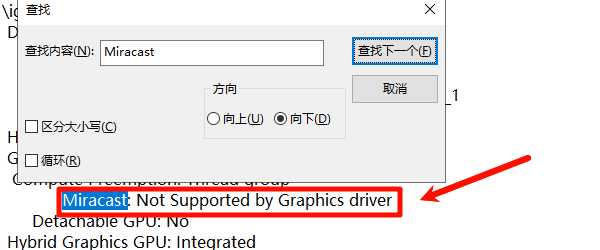
If it displays “Not Supported”, you need to continue troubleshooting for driver or hardware issues.
Method 2: Update the wireless network adapter driver
Miracast relies on wireless network card drivers to operate, and driver malfunctions are one of the most common reasons for screen mirroring failures. For users who are unsure of their network card model, ” Driver Life ” can automatically detect the computer’s hardware driver model and operating system bitness, and then match and install a compatible driver to repair the problem.
Driver Life X(Official version)
Brand new interface, core optimization, intelligent repair, worry-free installation.
1. Open “Drive Life“In the software, click on [Full Diagnosis] and then select the ‘Diagnosis Now’ option below;”
2. The software will perform a full scan of your computer for problems. Users can choose to update the wireless network card driver or select “Full Repair” to fix all computer problems with one click.
Many Miracast problems are actually caused by outdated wireless network card driver versions.
Method 3: Update your graphics card driver
Many users only focus on their wireless network card but neglect their graphics card driver. In fact, Miracast also requires graphics card support. If the graphics card driver is missing or outdated, it will also prompt that the device does not support Miracast. Here’s
how to check:
1. Press Win+X to open Device Manager → Display adapters;
2. Check the graphics card status. If you see: Microsoft Basic Display Adapter/yellow exclamation mark/driver error;
3.
This indicates a problem with the graphics card driver. You can use Driver Booster to update the graphics card driver simultaneously. After updating, test the screen mirroring function again.
Method 4: Confirm that the wireless display function is installed.
Some Windows systems, after being streamlined, may remove the wireless display component.
To check:
1. Open: Settings → Apps → Optional features;
2. Click: Add a feature, search for: Wireless display;
3. If not installed, click to install;
4. After installation, restart your computer and try again: Win+K;
5. Check if the screen mirroring device can be found.
Method 5: Check if the WiFi service is working properly.
Miracast requires wireless network related services to be running.
Steps:
1. Press Win+R, type: services.msc
2. Locate the following services:
WLAN AutoConfig
Network Connections
Network List Service
3. Ensure the status is: Running;
4. It is recommended to set the startup type to: Automatic.
If the service is disabled, Miracast may not work.
How can I check if my wireless network card supports Wi-Fi Direct?
1. Open an administrator command prompt and type: netsh wlan show drivers. View the results.
2. Locate: Wireless Support. If it displays: Supported: Yes
3. This indicates that the wireless network card meets the Miracast requirements;
4. If it displays: Supported: No;
5. Then it may be necessary to replace the wireless network card hardware.
Can older computers still use Miracast?
Not necessarily. Miracast typically requires:
Wireless network card support:
Wi-Fi Direct
NDIS 6.3 or higher;
Graphics card support:
WDDM 1.3 or higher.
If the device is older, even with updated drivers, it may not be able to obtain Miracast support.
When your computer displays the message “Device does not support Miracast,” the problem often stems from issues with your wireless network adapter driver, graphics card driver, or Windows components. Use Driver Booster for automatic detection and updates to quickly fix wireless screen mirroring problems caused by driver incompatibility. For devices that don’t natively support Miracast, you’ll need to upgrade your network adapter or use alternative screen mirroring methods to achieve wireless display.