
What to do if Windows 10 can’t find a wireless monitor ? Don’t keep clicking “connect” or reinstalling screen mirroring software. Often, this problem isn’t due to a sudden loss of functionality, but rather because the computer itself doesn’t meet the requirements for wireless screen mirroring. For example, Miracast support might be incomplete, the wireless network card or graphics card driver might be malfunctioning, or system components might not be properly loaded. To avoid unnecessary troubleshooting, first determine if your computer supports wireless display, then check the driver and system status; this will lead to a faster solution.
First, determine if your computer supports wireless display.
If your Windows 10 computer can’t find a wireless monitor, the first step isn’t to change settings, but to confirm that the computer has the necessary infrastructure for wireless screen mirroring. Wireless monitor functionality relies on Miracast, and it’s not enough for just your operating system to be compatible; your graphics card and wireless network card must also support it. If your computer doesn’t support it, no amount of searching will yield results.
1. Press Win+R, type dxdiag and press Enter.
2. After opening, click “Save all information”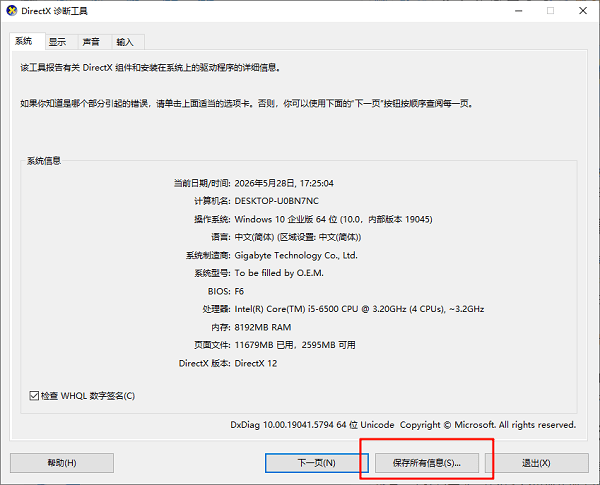
3. Press Win+R again, type cmd and press Enter.
4. Type netsh wlan show drivers.
5. Check if there is any Miracast-related support information in the results.
6. If it shows that it is not supported, you should first check the driver and hardware capabilities.
Second, check if there is a problem with the driver status.
Many users who previously had screen mirroring enabled on Windows 10 suddenly found themselves unable to find wireless displays. The problem often lies not with the function itself, but with the drivers. Especially after system updates or reinstalls, incomplete graphics card and wireless network card drivers can directly disable Miracast. In these situations, a driver check is more effective than manually navigating through settings.
1. Open Driver Life and start a full scan.
Driver Life X(Official version)
Brand new interface, core optimization, intelligent repair, worry-free installation.
 97% positive reviews
 Downloads: 5,285,339
2. Pay special attention to the status of the graphics card driver and wireless network card driver. If there are any missing, abnormal, or incompatible items, repair them according to the prompts.
3. Restart your computer after the repair is complete.
4. Re-enter the Win10 wireless display connection page to test.
5. If you still can’t find it, continue searching the system functions.
Third, check if the wireless function is enabled properly.
Some computers aren’t necessarily unsupported or have faulty drivers; the problem is that the wireless function isn’t enabled or the wireless service isn’t running properly. This is especially true for laptops where accidentally pressing the wireless shortcut key or disabling system services can cause issues. While the computer may still function normally, wireless-related search functions will be directly affected.
1. Confirm that WiFi is enabled.
2. Check if your computer is connected to an available wireless network.
3. Press Win+R, and type services.msc.
4. Locate the WLAN AutoConfig service.
5. Confirm that the service is running.
6. If it does not start, manually turn it on and then search for wireless displays again.
IV. Final check of optional features and system components
If everything else is normal, but Windows 10 still can’t find the wireless display, you need to check if all system components are installed. Some streamlined versions of the system, or computers that haven’t been updated in a long time, may have incomplete wireless display components in the optional features. In this case, even if the driver is fine, it may still not be able to find the target device.
1. Open “Settings” and go to “Applications”.
2. Click “Optional Functions”.
3. Check if the “Wireless Display” feature is installed.
4. If not, try searching for and installing it in the Add features section.
5. Restart your computer after installation.
6. Then go back to the screen mirroring page and search for devices again.
Frequently Asked Questions (FAQ)
Q: Why can’t my Windows 10 detect wireless monitors? Is it because my computer doesn’t support them?
A: Not necessarily. It could also be a Miracast driver malfunction or the wireless service not functioning properly.
Q: Is Driver Life suitable for handling this problem?
A: Yes, it’s suitable. Especially when there are problems with the graphics card driver and wireless network card driver, using Driver Booster to check will save time.
Q: My computer can connect to WiFi, but why can’t it detect the wireless monitor?
A: Being able to access the internet does not necessarily mean that Miracast is working properly. Graphics card drivers, wireless network card drivers, and system components can all affect search results.
What to do if Windows 10 can’t find a wireless monitor? First, determine if Miracast is supported. Then, use Driver Booster to check your graphics card and wireless network card drivers. Finally, check your wireless service and system components. For most users, this troubleshooting method is more effective than repeatedly trying to connect.