
Face ID is one of the most frequently used functions for almost every iPhone user, but many have encountered situations where unlocking fails, becomes unresponsive, or even keeps prompting for a passcode. This is especially true when you’ve just woken up, are wearing glasses, or in low light. In most cases, it’s not that the phone is broken, but rather that there’s a problem with the settings or usage. Making a few adjustments can significantly improve recognition speed, restoring Face ID to its instant unlocking state.
5 Tips to Improve Face ID’s Insensitivity and Slow Unlocking
Method 1: First clean the bangs or dynamic island area, then check the screen protector.
Face ID relies heavily on the TrueDepth camera for operation. Oil, fingerprints, or dust accumulation near the earpiece can interfere with infrared facial recognition. It’s recommended to regularly wipe the front camera and earpiece area gently with a microfiber cloth or eyeglass cleaning cloth. Also, check for screen protectors with poor light transmittance, as these often weaken infrared penetration, making Face ID less sensitive.
▲Regularly cleaning the bangs or dynamic island area and using a screen protector with higher light transmittance can help improve Face ID recognition success rate.
Method 2: If the method fails, you must enter a password to unlock.
Many people don’t know that Face ID actually has machine learning capabilities. When Face ID fails to recognize a face, if you simply lock the screen and try again, you’re interrupting the system’s learning process. It’s recommended to let it proceed to the password input screen and enter the correct password to unlock. The system will then incorporate the facial features from that previous attempt into its learning data, and over time, Face ID’s recognition success rate will naturally increase.
▲ Don’t rush to press the power button to try again after a recognition failure; entering your password allows Face ID to learn.
Method 3: Set another set of facial features to enhance the recognition effect.
Face ID can actually store two sets of facial data, not necessarily for others to use, but rather for “training yourself.” Factors like a puffy face after waking up, the angle of unlocking while lying down, a significant difference between bare and full makeup, or wearing different styles of glasses in rotation can all affect recognition success rates. By using “setting another appearance” to retrain yourself against these differences, Face ID usually becomes more stable and easier to unlock.
▲After entering Face ID and your password, you can create a new set of facial data by “setting another appearance.”
Method 4: Enable Face ID function on your mask
If you have an iPhone 12 or later, it’s highly recommended to turn on “Face ID with Mask,” even if you don’t usually wear a mask. This mode enhances the recognition ability around the eyes, significantly improving the success rate when wearing thick-rimmed glasses or when your face is partially obscured, and making unlocking less likely to fail.
▲If Face ID easily fails to recognize your face when wearing glasses or a mask, you can check “Face ID with Mask” and rescan your face by “Adding Face with Glasses” to improve the success rate.
Method 5: Reset Face ID in a well-lit environment
When resetting Face ID, there are a few details to pay attention to: the ambient light should be even and avoid backlighting; the ideal distance between the phone and your face is about 25-50 cm; remember to show your entire face and push your bangs aside; when turning your head in a circle, slow down the movement to ensure that the system can scan your side profile and chin. This will create more complete facial data and increase the success rate of unlocking later.
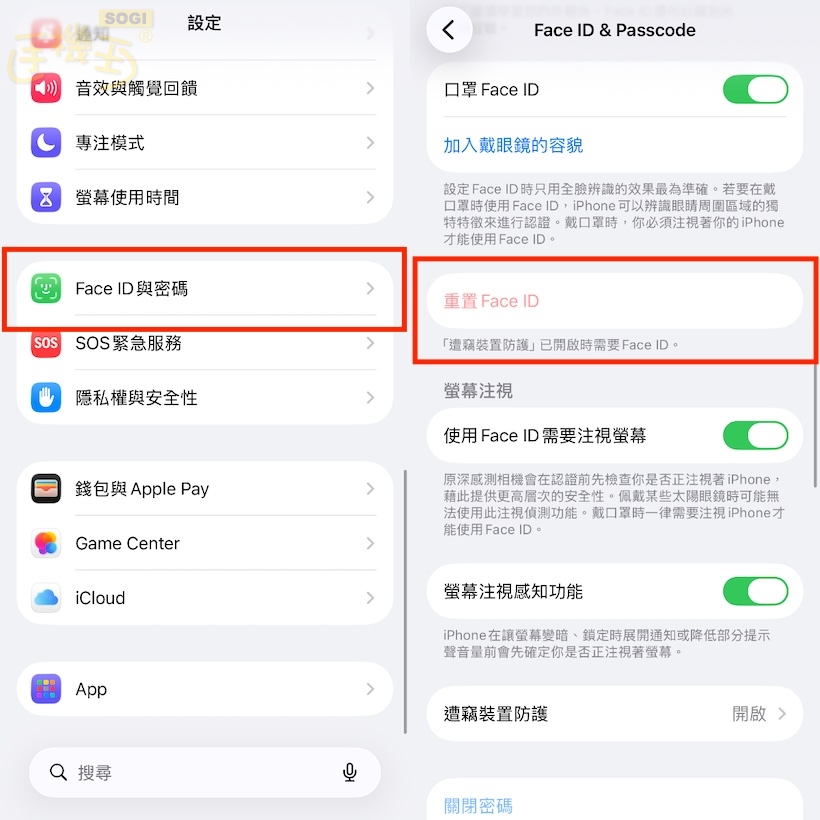 ▲If the above four methods are ineffective, it is recommended to “reset Face ID” to allow the iPhone to re-acquire the current facial data.
If you have recently found that your iPhone’s Face ID is unresponsive, the unlocking speed is slower, or even the failure rate has noticeably increased, be sure to make good use of the above five methods to solve the problem. This will quickly restore Face ID to normal and bring back the fast and accurate unlocking experience of the past. This information is provided for your reference.