
When Windows Update displays the error code 0x800706d9 (EPT_S_NOT_REGISTERED, indicating an unregistered endpoint), it signifies a breakdown in the system’s underlying communication chain. During its internal security handshake, the Windows Update Agent discovers that its critically dependent Remote Procedure Call (RPC) and Windows Firewall (MpsSvc) services have been forcibly terminated or have compromised configurations.
No need to blindly reinstall the system. Here is a professional, hardcore repair guide that has been tested and is presented from basic to advanced levels.
Step 1: Force wake up using the SC command
When the regular Services Manager (Services.msc) cannot be modified due to insufficient permissions, we need to use the highest-privilege console commands to force the service to be written into the system startup items and start it immediately.
Right-click the Windows logo in the lower left corner of the screen and select “Command Prompt (Admin)” or “Windows Terminal (Admin)”.

Copy and execute the following three sets of service reset commands in sequence:
1. Forcefully restore and start the RPC Endpoint Mapper service:
`sc config RpcEptMapper start= auto`
`sc start RpcEptMapper`
2. Forcefully restore and start the RPC Remote Procedure Call service:
`sc config RpcSs start= auto`
`sc start RpcSs`
3. Forcefully restore and start the Windows Firewall core service (required):
`sc config MpsSvc start= auto`
`sc start MpsSvc`
Execution result assessment: If the command indicates that the service has run successfully, please retry Windows Update immediately. If the update still freezes, it means that the underlying firewall registry has been maliciously modified or removed by malware; please proceed to the next step immediately.
Step 2: Verify firewall registry keys
When the firewall service fails to start, it usually means that the SharedAccess registry key has been corrupted.
1. Run the following command in an administrator command prompt to retrieve and diagnose the registry integrity of the current firewall:
`reg query “HKLMSYSTEMCurrentControlSetServicesSharedAccessParametersFirewallPolicy” /s`
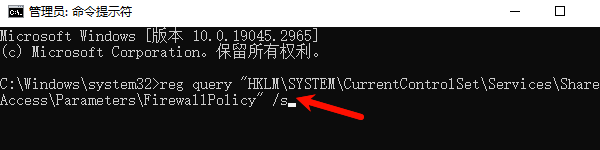
2. If the system returns “The specified registry key could not be found” or indicates data corruption, there is no need to manually modify complex registry entries. Instead, directly run the following advanced network defense command to completely initialize and restore the firewall’s global policies and port mappings:
`netsh advfirewall reset`
Step 3: One-click repair of DLL components
If the service is working normally but updates still fail, it’s usually because the system hasn’t been updated for a long time. This can cause version gaps, missing components, or malicious lock-up by virus files in critical DLL components required by the Windows Update Agent (such as wuaueng.dll, wups.dll, etc.) or underlying DirectX and VC++ runtime libraries.
For ordinary users, manually downloading DLLs from the internet is very likely to encounter software bundling or version incompatibility issues. A safe and professional solution is to use ” Starry Sky Runtime Library Repair Master ” for fully automatic deduplication, reassembly, and environment repair.

Starry Sky Runtime Library Repair Master(Official version)
A comprehensive solution to DLL errors, say goodbye to game errors forever.
1. You can download it by clicking the button above, or you can download and install “Starry Sky Runtime Library Repair Master” from the website. Open ” Starry Sky Runtime Library Repair Master “, switch to DLL repair, and click “One-Click Scan”.
2. After scanning for any missing runtime libraries on your computer, click “Repair Now”.
3. Wait for the software repair to complete, restart your computer, and then run the scan for runtime libraries. You will then see that the DLL repair is complete.
Follow-up: After the repair is complete, please restart your computer and open Windows Update again. The previously stuck progress bar should now pass the verification smoothly.
Note that the 0x800706d9 error often leads to complications such as LAN disconnections and network card driver failures. If you find that your system still has complex network issues after using Starry Sky Runtime Library Master to fix the DLLs, you can use Driver Life to scan, detect, and install new drivers.
Step 4: Invoke cloud-based Operations to execute the “Run command to reset”
No need to log in to the VM’s operating system. Simply log in to the Azure portal, navigate to the affected VM’s control panel, and find Operations > Run Command. This
will trigger the Azure VM Windows Update Reset Tool online. This tool will perform a high-priority reset on the VM’s update service stack directly in the cloud, forcibly erasing the deadlocked state in memory.
Step 5: Mount the offline registry unit
If the reset tool fails, offline injection repair is required:
1. Create a temporary repair VM using the Azure VM repair command (az vm repair).
2. Attach the affected faulty OS disk as a data disk to the repair VM.
3. Open the Registry Editor in the repair VM and use the “Load Hive” feature to load the offline registry of the affected OS disk.
4. Force the Start value of the following three subkeys in the offline registry to be changed to 2 (representing automatic startup):
- RpcEptMapper
- RpcSs
- MpsSvc
5. Uninstall the configuration unit, reattach the repaired disk as the primary disk back to the original VM, and boot the machine.
Whether it’s a regular home PC or a complex cloud virtual machine, the core solution to 0x800706d9 is always restoring firewall communication rights and rebuilding corrupted underlying DLL components. Local users are recommended to use Starry Sky Runtime Library Repair Master to quickly repair system components and clear memory lock states, while simultaneously using Driver Life for hardware driver-level health checks to minimize the risk of blue screens caused by registry manipulation.