
When encountering Windows Update error code 0x80070002 during a computer system update, it usually means that some files are missing or corrupted during the update process. This problem may prevent your system from updating normally. So how do you resolve error code 0x80070002? There are several ways to solve this problem. Below is a guide to handling 0x80070002 to help you resolve the error.
I. Reasons for error code 0x80070002
Error code 0x80070002 typically occurs during Windows Update when the system cannot find or access the update files. This can be caused by a variety of reasons, including but not limited to:
1. The Windows Update service is not running correctly.
2. System files are corrupted or missing.
3. Security software is blocking the update process.
4. The time and date settings are incorrect.
II. Steps to resolve error 0x80070002
1. Run the Windows Update Troubleshooter
① In Settings, select Update & Security, then select Troubleshoot.
② Select Windows Update, then click Run Troubleshooter.
③ Follow the on-screen instructions and restart your computer.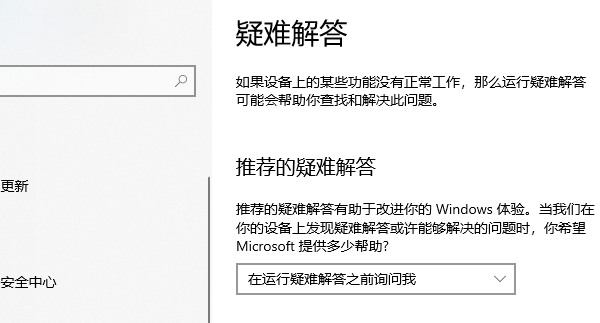
2. First check the drivers and system environment.
Many people reinstall the system when an update fails. However, many 0x80070002 errors are actually caused by: faulty network card drivers, outdated chipset drivers, missing system runtime environments, or abnormal update service dependencies. It is recommended to use “Driver Life” to detect and repair any abnormal drivers or system component issues, and to upgrade or repair drivers with one click.
Driver Life X(Official version)
 97% positive reviews
 Downloads: 5,285,324
① Click the button above to download and install, then open Driver Life and click the “Diagnose Now” option on the “Full Diagnosis” interface;
② The software will automatically detect existing problems on your computer, such as driver issues, environment repair issues, DLL file issues, runtime library issues, etc. Users can click the “Full Repair” option to batch install drivers and repair existing computer problems, thus restoring the system environment.
3. Check the time and date settings.
① Ensure your computer’s time and date are set correctly.
② If necessary, manually adjust the time and date.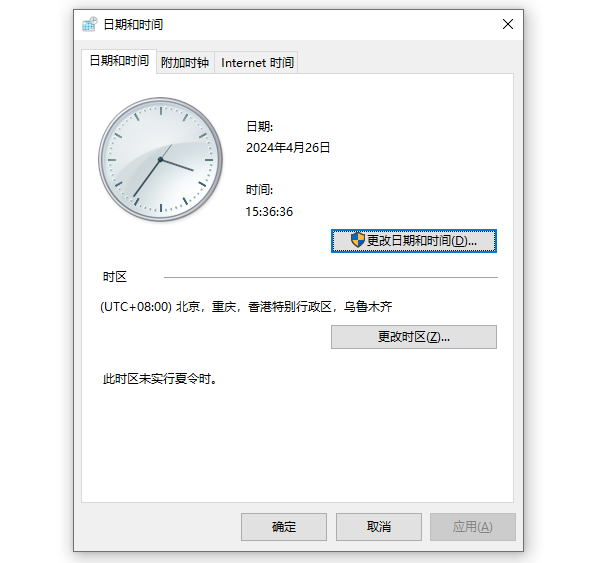
4. Reset Windows Update components
① Press Win+R to open the Run dialog box, type “cmd” to open Command Prompt (Administrator).
② Stop the Windows Update service: `net stop wuauserv` and `net stop bits`.
③ Delete the contents of the C:WindowsSoftwareDistribution folder.
④ Restart the Windows Update service: `net start wuauserv` and `net start bits`.
5. Run the system file checker
① Open Command Prompt (Administrator).
② Type sfc /scannow and press Enter.
③ Wait for the scan to complete and follow the prompts to fix any problems found.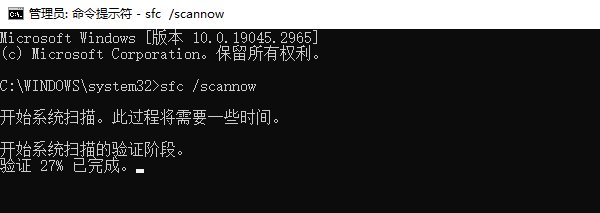
6. Manually download and install the update.
① Visit the Microsoft Update Catalog website.
② Search for and download the update appropriate for your system version.
③ Manually install the downloaded update file.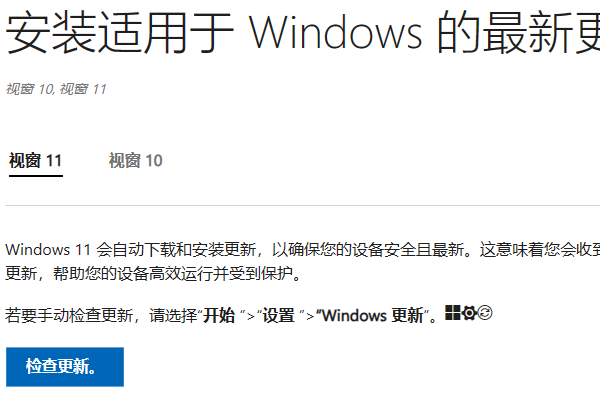
7. Temporarily disable security software
① Temporarily disable your antivirus software and firewall, then try updating them again.
8. Perform a CHKDSK scan.
① Open Command Prompt (Administrator).
② Type chkdsk C: /f /r /x and press Enter.
③ Restart your computer and try updating again.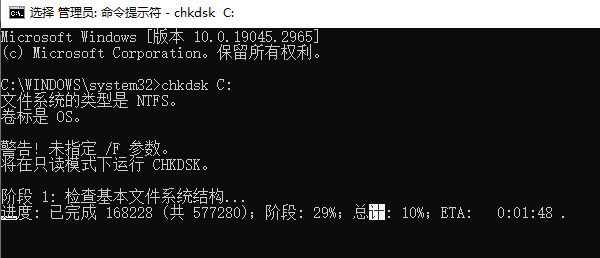
How can I reduce the recurrence of 0x80070002?
We recommend the following routine practices:
1. Regularly update your system and drivers;
2. Avoid using outdated drivers for extended periods;
3. Avoid forced shutdowns;
4. Regularly check system files;
5. Promptly repair any abnormal system components,
especially driver issues, which many users don’t proactively check. You can use a tool like ” Driver Life ” to regularly scan for: graphics card drivers, network card drivers, sound card drivers, Bluetooth drivers, and motherboard chipset drivers to prevent driver compatibility issues from affecting Windows updates.